
VPN for Ubuntu
VanyaVPN installs on Ubuntu 22.04 or later with a single terminal command. The .deb package pulls in anything your system is missing, NetworkManager included.
- Ubuntu 22.04 and newer, x86-64
- version 1.21.0
- 83.5 MB
- built on October 18, 2026
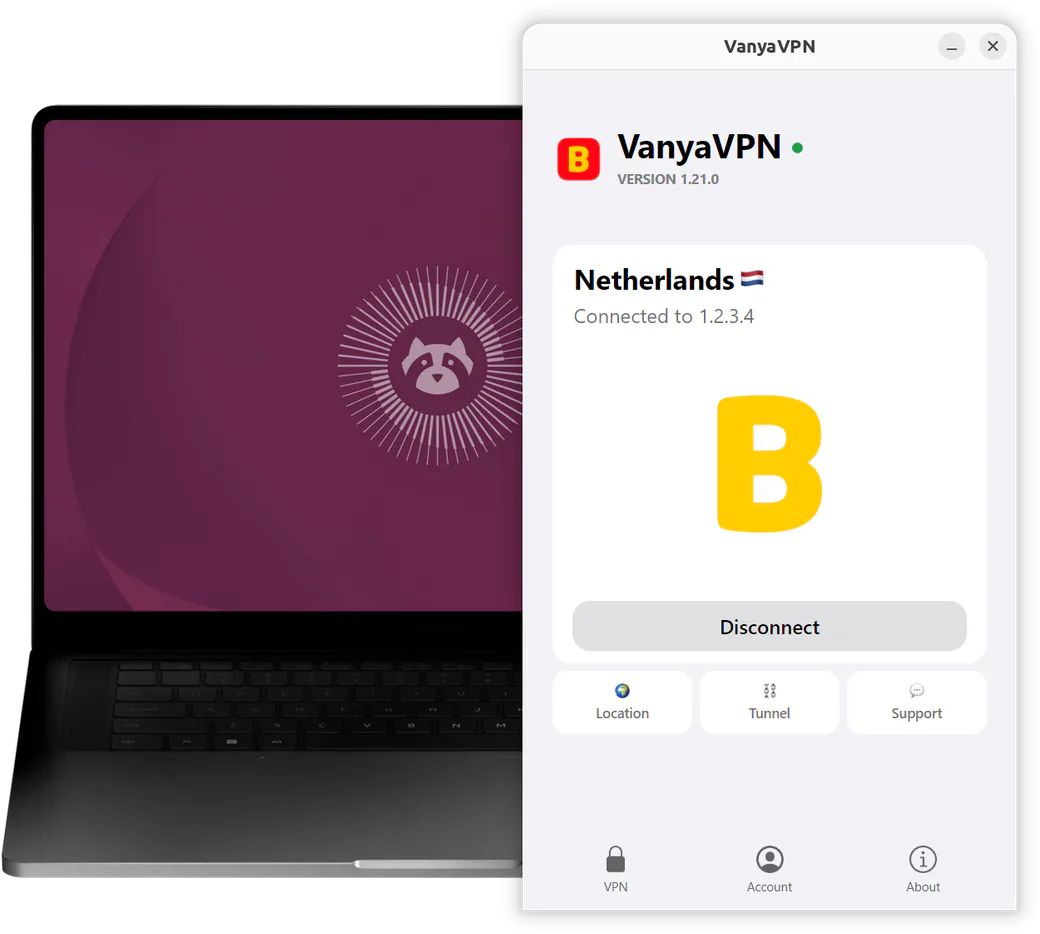
Installing the .deb package
-
Download the package
Click “Download for Ubuntu” above. Your browser saves VanyaVPN.deb to the Downloads folder.
-
Open a terminal there
Press Ctrl+Alt+T to open a terminal, then switch to that folder.
cd ~/Downloads -
Install the app
Run the command below and type your account password. If apt asks whether to continue, press Enter.
sudo apt install ./VanyaVPN.deb -
Connect
VanyaVPN now shows up among your applications. Open it, sign in and press Connect. It won’t ask for a password to connect.
Prefer an AppImage?
The AppImage skips apt entirely. It’s a single file you download from the AppImage link under the button and run without installing. It does need the FUSE 2 library. On Ubuntu 24.04 and later, install it with the command below.
sudo apt install libfuse2t64
On Ubuntu 22.04 the package is called libfuse2. Then make the file executable and start it with this command.
chmod +x ~/Downloads/VanyaVPN.AppImage && ~/Downloads/VanyaVPN.AppImage
When you first connect, the app offers to add its VPN adapter and asks for your administrator password. Usually you only do this once, though after some updates the app may offer to install the adapter again.
Tray, autostart and updates
Closing the window doesn’t stop the app. Its icon stays on the right of the top bar. To have it start with your computer, turn on Autostart in the app’s settings.
When a new version comes out, the app tells you. You install it the same way as the first one, by downloading the package and running apt install again. To remove the app, run this command.
sudo apt remove vanyavpn-client
More about VPN for Ubuntu
Will it run on a Raspberry Pi or an ARM laptop?
No. Both the package and the AppImage are built for x86-64 processors only, meaning ordinary Intel or AMD computers.
What about Ubuntu 18.04 or 20.04?
You need Ubuntu 22.04 or later. On 18.04 the package won’t install and the AppImage won’t start, because the system’s glibc library is older than the 2.28 the app needs.
Can some sites bypass the VPN?
Yes. Split tunneling is in the app’s settings. Pick the ready-made “For Russia” mode, or enter addresses and domains of your own under Manual.
Why does it need NetworkManager?
The app sets up its VPN connection through it. Desktop Ubuntu already has it, and if yours doesn’t, apt installs it along with the package.
Your plan covers Ubuntu and more
A paid plan applies to all your devices at once, whether that’s this Ubuntu machine, your phone or your TV.
-
2 years
-
Year
-
6 months
- Month No bonus months $5/mo

The “Vanechka” trial
3 days with every country for $0.50, once per account. After that it continues month to month, and you can turn renewal off in your account.
If it does not work for you, we refund the payment under our refund policy.